
|
The notion of Data-Driven Improvement (DDI) has come to the forefront in education over the last few years, most notably as part of Paul Bambrick-Santoyo's seminal works, Driven by Data and Leverage Leadership in which he argues that 'data-driven instruction' is central to good educational leadership. This work has formed the basis of a movement in the U.S. through Uncommon Schools, which is gaining traction as a model in the U.K. 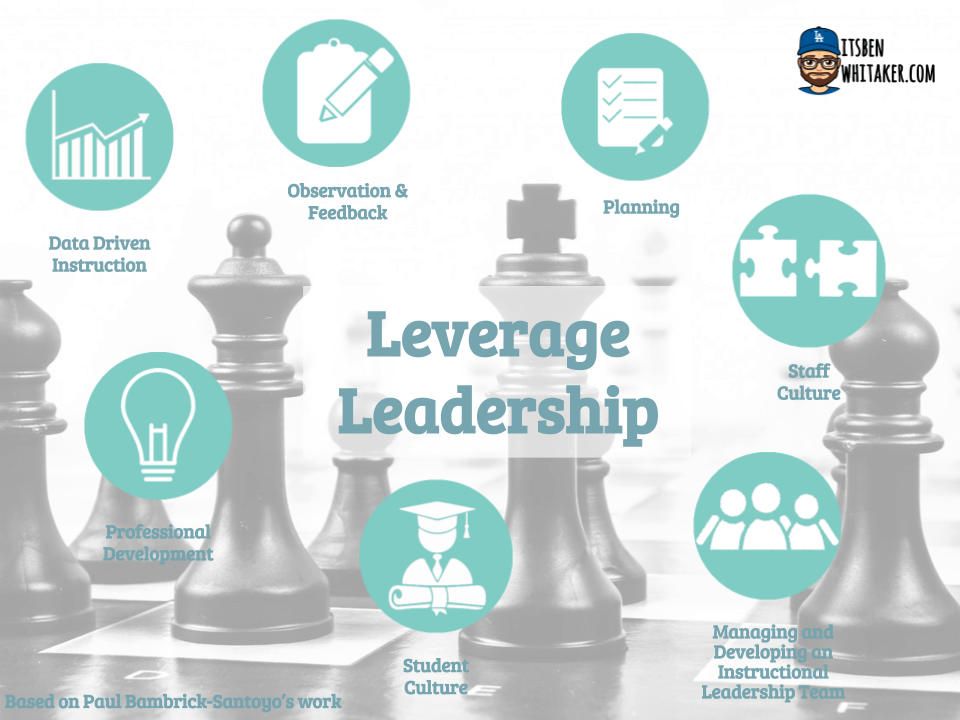 So the idea of basing everything on data and a continuous cycle of improvement is at the crux of this model. In fact, the mantra of "aggressive monitoring" is held up as good practice. My question: is it crucially about the data we have or the children we teach? I admit the two are not mutually exclusive - children create data - but that is the very heart of my argument: children come first. I believe in our data-heavy (as opposed to data-rich) schools, we are measuring the impact of everything (which in itself is not an evil but often leads to such, including marking for the sake of marking, reports and analysis that look nice but tell us very little) and proverbially placing the cart before the horse. Perhaps the 'data' we gather and drive from needs a rethink. "If you teach and students do not learn, is it really teaching? You cannot know if students are learning at the highest levels if you don’t assess that learning."I don't think anyone would argue with this message. We have all sat through (and probably even delivered) lessons that are just the teacher spewing out information without any consideration for whether students understand the material. Indeed, there are probably young people right now sat in classrooms thinking, "What is the point in this? I don't even know what he's going on about!" Aimless teaching is neither use nor ornament. However, what I am trying to say is that there is still too much assessment OF learning (despite insets or guidance otherwise on AFL). How many times do we as teachers sit with marked assessments or verbal question answers in front of us before we plan the next session? Rarely, I guess. Isn't it simply enough that we have covered it? The answer is no! We must KNOW our students and how best to cater to their needs. This does require data but the amount and frequency of collecting thus is perhaps unsustainable and gratuitous. I am advocating a common sense approach (no pun intended). Students' lives matter. So do teachers'. We cannot continue working at the rate and intensity that is expected from all - parents, SLT, OfSTED, whoever is placing the demands this week. So, perhaps rather than data-driven instruction, it should be child-centred - if the data is about the child, then gather it; if it's not, let's not waste the time. Let the children drive the curriculum and their learning. Data is, in fact, a great servant but a poor leader. It does matter but not as much as we give it credit for! 
0 Comments
 In my last blog post, I focused on tips and tricks for using the preferred browser for all things G-Suite, Google Chrome. In this article, I aim to look at tips, tricks and ideas for using Google Drive effectively. If used as intended (and kept organised!), the Drive can be a repository of all your files, it can be fully searchable and can save time and money for schools. Google Drive: The HubDespite freaking the world out in September 2017 when Google announced that Drive would be disappearing, what they actually meant was that Drive Sync - the offline version - was being discontinued. The fully fledged hub of all Google files, drive.google.com (by the way, (insert app name).google.com is the address for almost anything Google), is still alive and kicking. Below are some reasons for using it and also some useful tips and tricks for making the most of this brilliant cloud storage facility.
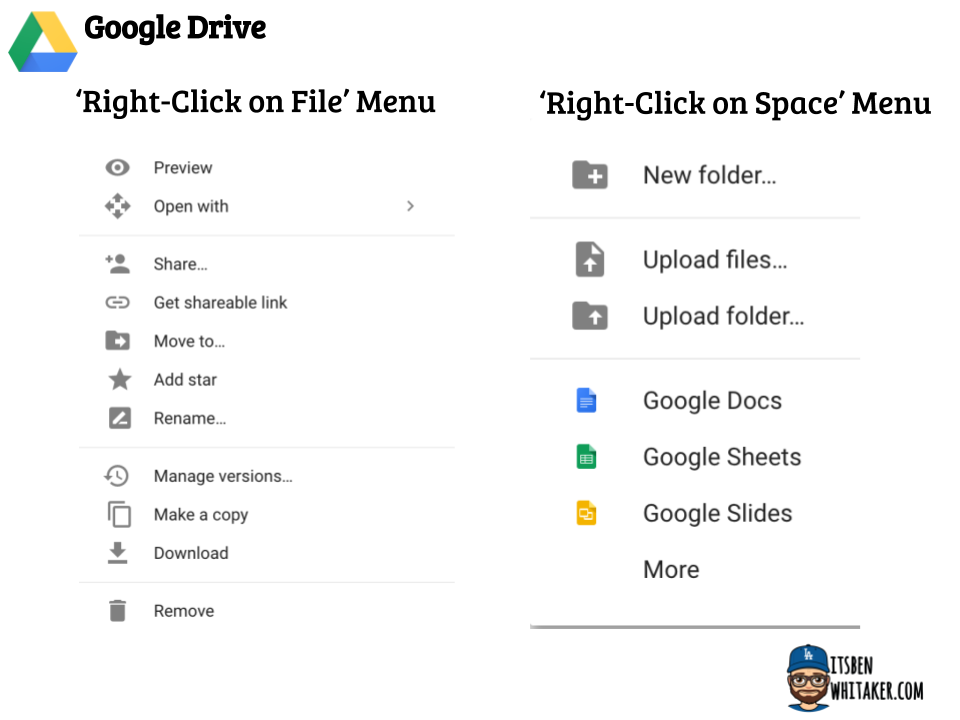
Tips and Tricks for making the most of the Drive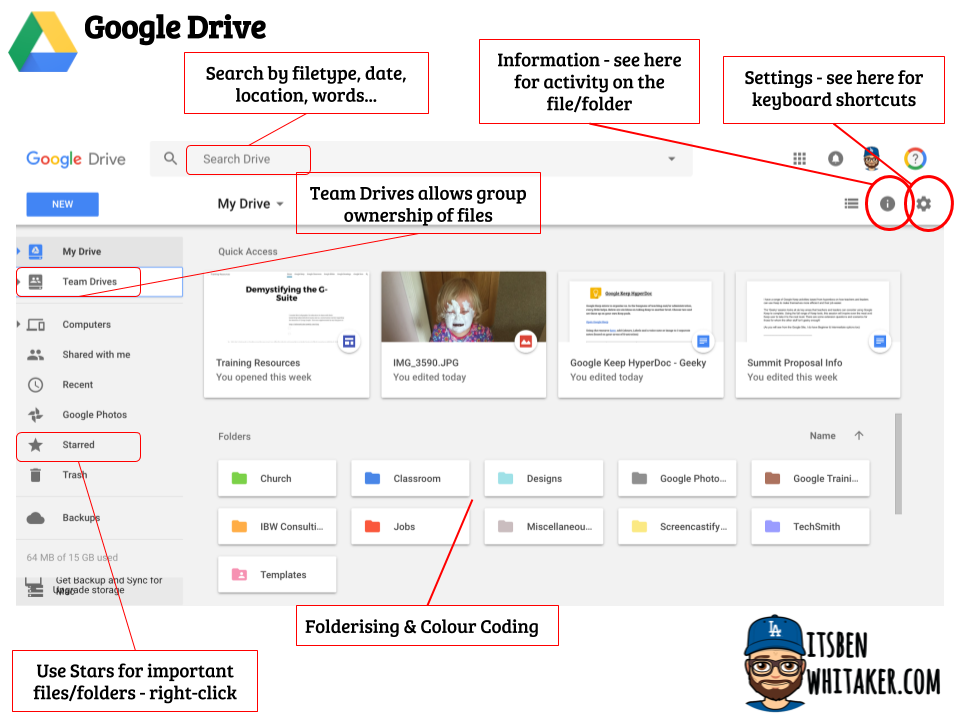
 In my previous post, I discussed reasons for Going Google - the foundational rationale for integrating G-Suite into education and not-for-profit settings. Here, I will be starting a series looking at individual tools within the suite (and some that are cool add-ons/apps that make sense to discuss here). NB: I do not intend this to be full descriptions or how-tos for these tools; in fact, I want to create a little bit of intrigue to encourage readers to step out into the unknown. Here goes... Google Chrome - The BrowserAccording to Digital Trends, Chrome is the best internet browser. When you are on the internet, some might ask if it really matters which you use (the most common other browsers are Internet Explorer, Mozilla Firefox and Safari). An estimated 67% of all browsing is now done through Chrome and I can tell why. (Some more recent statistics suggest 77%). Below I will outline a number of reasons for using Chrome and tips & tricks for maximising your browsing. "If you’re not sure which browser you should be using, you should be using Chrome."
 My Top 10 Tips for Making Chrome Work for You
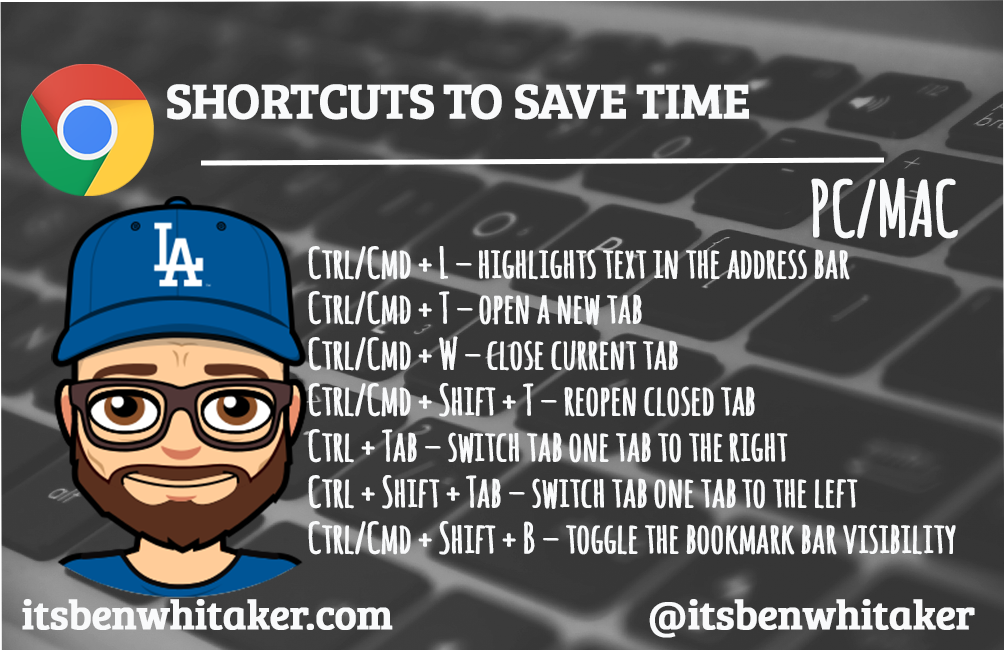 Hope this has been useful and keep posted for the next part: Google Drive - The Hub...
 So I made another infographic this week that I will be sending to all my PD partners and the schools & colleges I will be making inroads with in the next few weeks. Having been excited about Google Edu stuff for a while and pioneering some ideas in my last setting, I often find people asking me - why Google? Isn't it just where you search for answers at the click of a button? Alas, I have not yet face-palmed nor face-slapped yet...But it did get me thinking about the key reasons why it is important to 'Go Google'. 1. It's totally free and unlimitedFor education and non-profit users, who happen to be the two sectors that I am working with currently, the G-Suite is free. That's right - you pay nothing to have a domain, set up multiple users (we had over 1000 in our previous organisation), and have access to the full range of applications that are on offer. The Core Suite (Keep, Docs, Sheets, Classroom, Gmail, Drive, Calendar, Forms, Sites, Slides, Hangouts, Groups) is a perfect place to start and in fact, you probably won't use all of these all at once (NB: I started with Docs & Drive before finding the Pan's Labyrinth that is Google Classroom!). Not only are the apps free but all cloud-based storage is free too...and unlimited. You will never fill your GAFE (Google Apps for Education) space. These two facts alone are saving schools money like you would never know (and heaven knows we need to save schools money in the current climate). One school estimated that eliminating on-site servers has saved them £40k alone. CDW (a leading IT solutions company) suggests that moving over to Chromebooks as the device of choice has saved 93% of IT deployment hours, 68% of annual support time and 61% on 3-Year Costs (Source: IDC Whitepaper: The Economic Value of Chromebooks for Educational Institutions, September 2015). All in all, when you Go Google, you save money and effort. 2. It will boost collaboration between staff and studentsAccording to an African proverb, "If you want to go fast, go alone; if you want to go far, go together." This absolutely is at the heart of G-Suite. Working together gets the job done. But it's not just about getting stuff done - it's about stuff being done right. This is not just another job; young people's lives, futures, dreams, mortgages, children all depend on it. That's the truth - we need to take seriously the fact that young people (and all learners for that matter) depend on us as educators to do things properly, for the long-haul not just the instant win. G-Suite allows us to work together on projects that have meaning (e.g. Google Sites allows students to have an authentic audience for their projects). The G-Suite is grounded in collaboration - many of the Core apps allow up to 50 people to be working on them SIMULTANEOUSLY. Imagine this scenario (because it's probably not too far from your normal teaching experience): a department or faculty needs to write a new Scheme for Learning (SFL) for a year group. They will probably take the following steps:
I haven't even mentioned creating collective slide decks in Slides where each student has responsibility for a different topic area and they all work on the Slides together for homework. Or, perhaps collaborating on a classwide Google Site to showcase their learning for the year. Or, what about the staff who create a consistent assessment model in Google Forms that they share to all students and collate data automatically in Google Sheets? It really makes working together work.  3. It will lead to a less-paper school and worldRay Fleming, Education Marketing Manager for Microsoft, estimates that most schools spend more on printing than IT and some approximations suggest each school prints around a million sheets per year, equating to about £45000. The last school I worked in actually topped the two million mark in each of the last two years I was there (and that was when iPads and EdTech were already in place!). Practice examination papers, multiple assessment documents and 'regularly updated' displays all take their toll. Now, no-one is suggesting that a 100% paperless classroom is possible, or in fact, necessary. Indeed, there is something magical about holding a book or a magazine or a student's poster being displayed on the corridor. Schools already have lots of wonderful paper-based resources that it would be impractical and unwarranted to simply replace these with digital versions (and theory on the SAMR model would suggest this is only first-level use of technology). We don't want to stop paper use; indeed, as it stands, the terminal examinations at 16 and 18 require use of the written form so we need to ensure students are still utilising written methods. What is clear though is that the way we are working is unsustainable. Take, for example, the re-issuing of multiple worksheets for homework (students lose them, the dog eats it, their juice spilt over it or you simply didn't print enough). The creation of these still requires the hard graft but the sharing and collection of these can be made simpler (and more eco-friendly) just by sharing them electronically (either in Google Classroom or via links in Drive or Docs). No more excuses - it is simply there to share again. There is also a permanent record of the submitted work rather than relying on worksheets being stuck in books or filed in drawers never to be seen again. If you add in that marking through Classroom with Comment Banks (see coming blog post!) means that staff can access work quicker and in a less cumbersome way (how many wearisome teachers have we seen carrying out a mountain of marking or wheeling their trolleys of torture on a Friday evening?), it really does make sense. Let's get to saving the world. 4. It stimulates creativitySingapore is generally regarded by many as one of, if not the best, education systems in the world. A BBC article highlighted how they have placed creativity at the centre of their curriculum and moved to more "holistic education". In fact, "there is strong evidence from across the curriculum and age-range that where children and young people are given some control over their learning and supported to take risks with the right balance between structure and freedom, their creativity is enhanced" (Davies et al, 2013). One of my greatest epiphanies came in a Y13 Religious Studies class when a certain young man came into the room excited to tell me that he had been watching a video the previous evening on YouTube which proved that I knew what I was talking about with Kantian philosophy (which was a good job because it is a tough gig to get your head around!). It made me realise that students didn't need us to teach them anymore. They needed us to facilitate their learning. No longer is the teacher the sage on the stage or the font of all knowledge. Many students even spend their time researching ways to counter-argue what is being taught anyway from their real 'teacher': the Internet! The G-Suite certainly allows students control over the learning, and not just through Google's monopoly on the world's two biggest search engines (Google Search & YouTube, which it acquired in 2006 unbeknown to most people at the time). The creative opportunities are immense within the suite, but with amazing add-ons, extensions and third-party apps, there is an even wider plethora of choice. For example, I used EdPuzzle as a method of making/editing educational videos (even using screencasts to showcase 'how tos' for staff and students) and then creating assessments or ongoing questions to check the learning throughout. This was an amazing homework project and allowed us to extend the learning beyond the classroom. Einstein suggested that, "We can't solve problems by using the same kind of thinking we used when we created them." It's time to get rid of the box, never mind think outside of it. 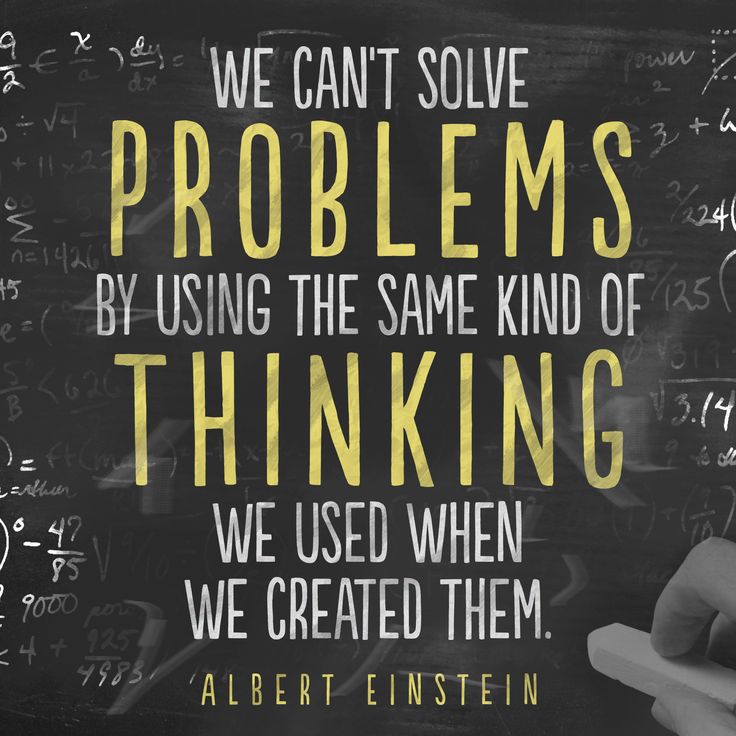 5. It is safe, secure and user-friendlyOne of the biggest worries that schools, and particularly school leaders, face is that of security. "Won't Google be able to access all of our information, including confidential records?" "What happens if we can't access the cloud?" "Can hackers not get all of our stuff much easier if it isn't backed up on our hard drives?" These and other similar concerns are justified in the light of huge data breaches in recent times. However, Google uses the world's leading encryption (256-bit AES ) making it way more secure as any USB stick or server anywhere on the planet (as this insightful article suggests though, it is only as secure as our use of it!) Google Vault is Google's archiving and storage system that ensures that all work within a domain (including all comments, searches and user activity) is saved and searchable. This means that any student or staff accounts can be tracked (if necessary) and all important information can be retrieved almost immediately. The G-Suite allows for greater protection of students with restrictions controlled by the administrator, and if your school goes to Chromebooks, this management goes up a whole other level in terms of deployment of apps, whitelisting of websites and checking suitability of YouTube videos. Although no system is ever foolproof, this one goes a long way towards it. Finally, the G-Suite is amazingly user-friendly. The interactivity between apps is seamless and the commonality of 'Share' functions makes it so easy. Even the world's greatest technophobe will find the navigation of the apps simpler than any other leading competitors. One great example of this has been mentioned earlier and is something I will be blogging about very soon and that is the integration of Google Keep within Docs. I was forever writing the same comments on a pile of student books and was becoming increasingly frustrated at what seemed like a huge waste of time. By typing these common phrases into a Keep note and then simply dragging and dropping them onto the electronic assignment, I was literally saving hours of my life. I was free! (A simple explanation of this can be found here). The G-Suite really was a life-saver. Going Google has never been easier and more necessary. I urge you all to start the conversation. If I can be of any help on that journey, please don't hesitate to contact me. 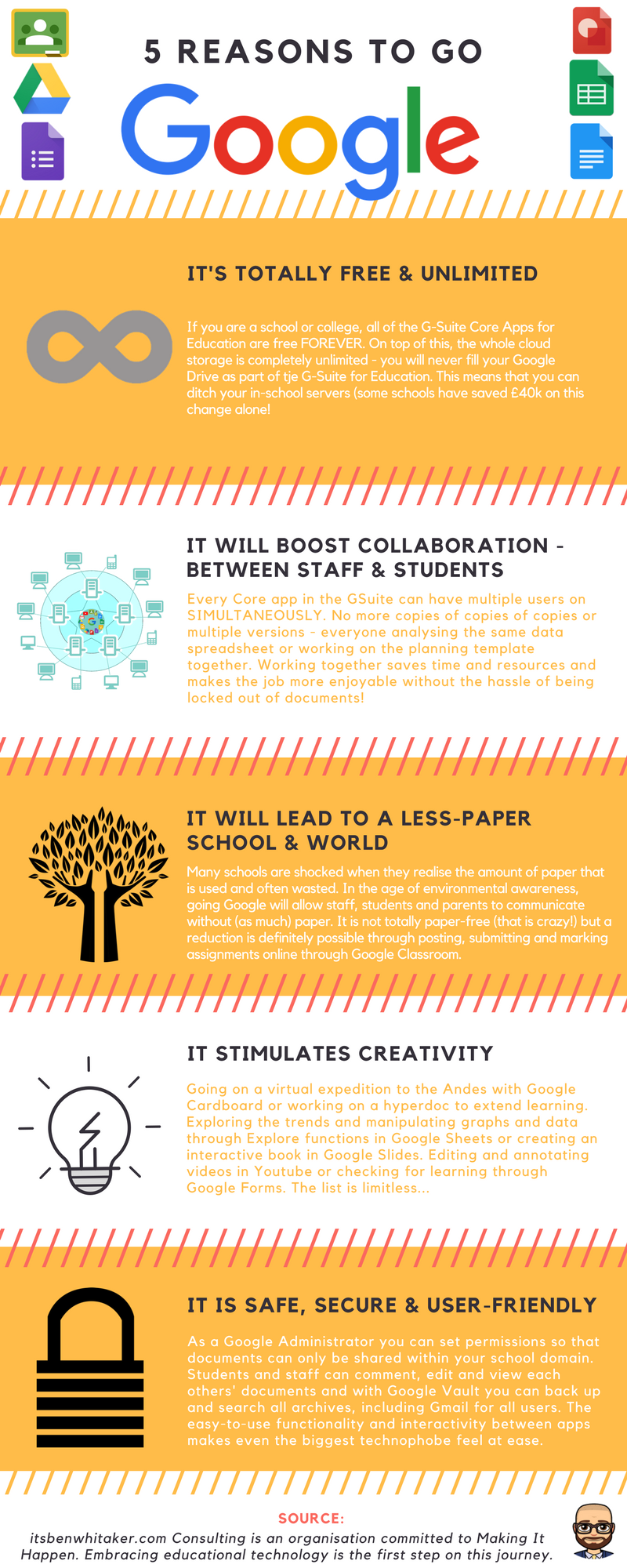 |
AuthorI am Ben Whitaker. I love to write about allsorts - life, tech, faith, education, books. Enjoy! Archives
November 2017
Categories |
 RSS Feed
